

Overview
The Radius Tool allows map users (visitors of your published map) to draw circles on the interactive map to measure distances or analyze areas.
This tool is designed for end users, not for the map creator.
If you want circles to be part of the permanent map content, use the drawing tools in the editor instead.
👉 Check it out on a sample map

How to Enable the Radius Tool
To make the radius tool available on your published map:
- In the Map Editor, go to Settings > Search > Radius Tool.
- Enable the option “Add radius tool for map users.”
- Publish or update your map.
Once enabled, visitors will see a “Draw Radius Circle” button on your published map.
Note: The radius tool works only when the map is displayed in landscape mode. It is not available on mobile devices held vertically (portrait mode).
How to Use the Radius Tool
Create a Radius Circle
- Click the Draw Radius Circle button.
- Click the map where you want to center the radius.
- Drag outward to set the desired radius.
- A number field will show the current radius value.
- Repeat to add more radius circles.
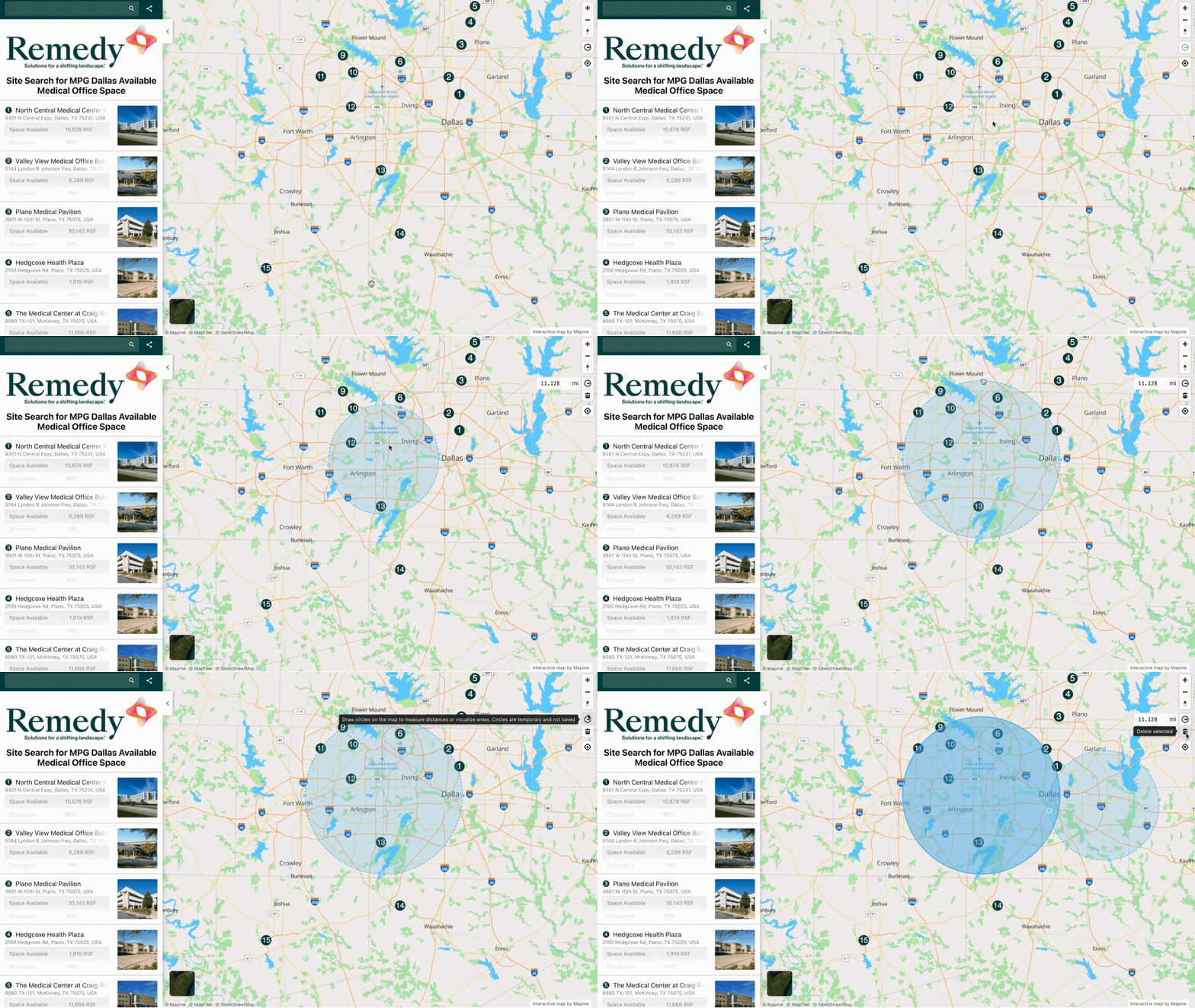
Move a Radius Circle
- Click on a circle to select it.
- Drag it to a new location on the map.
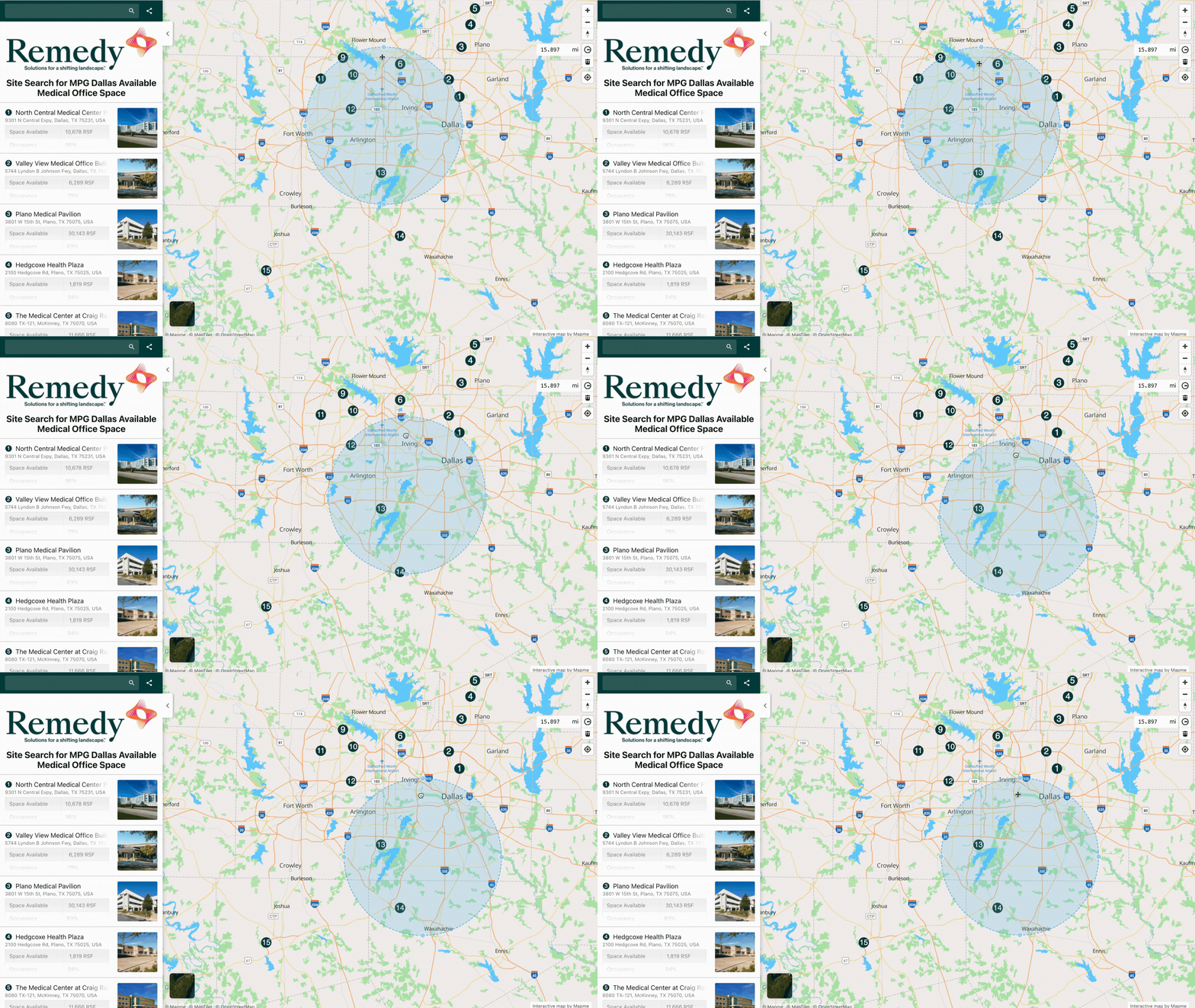
Edit Radius Size
- Click on a circle to select it.
- Drag one of the four resize handles around the circle to adjust its size.
- Alternatively, enter a precise value in the radius field.
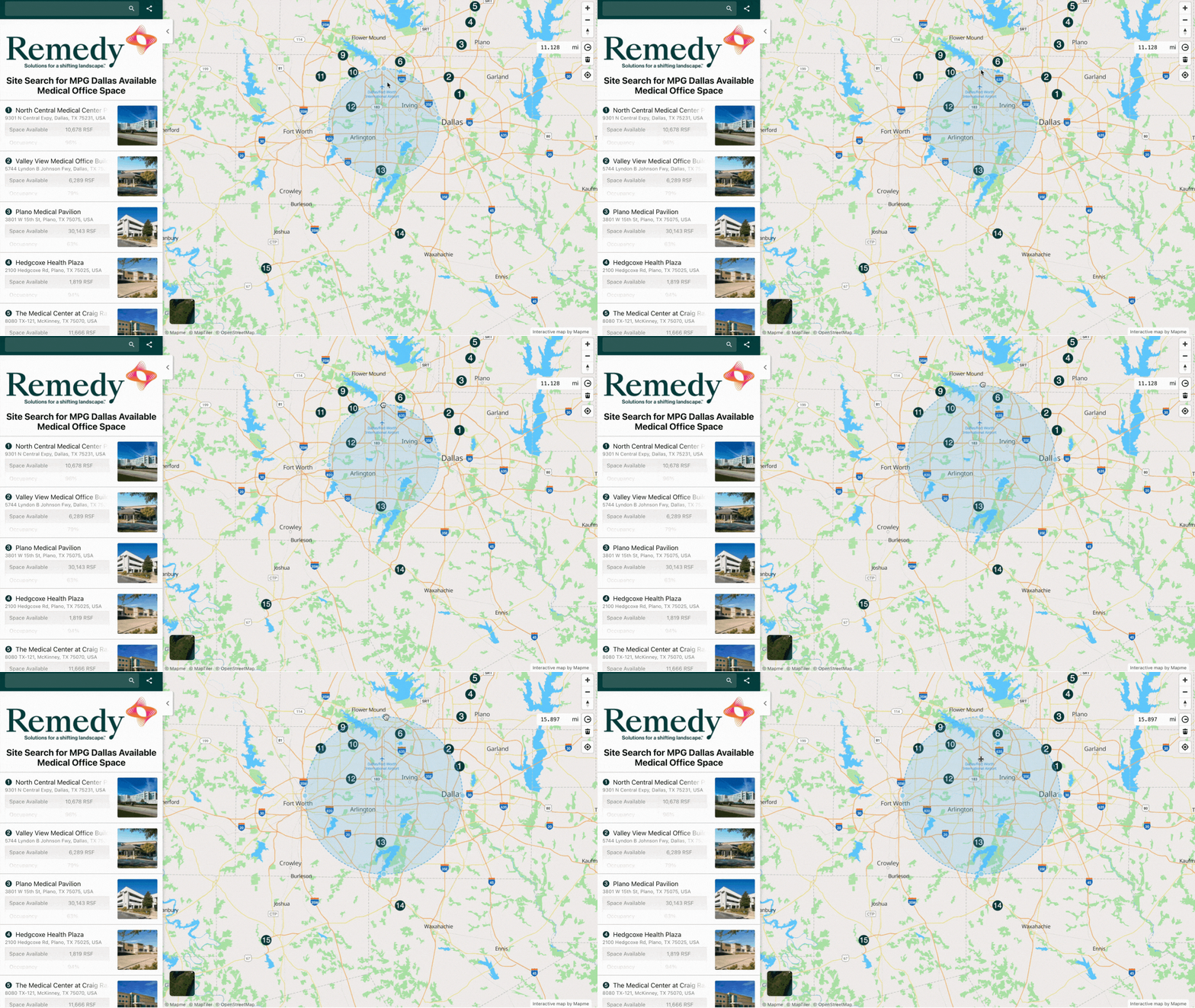
Delete a Radius Circle
- Select a circle, then click the trash can icon to delete it.
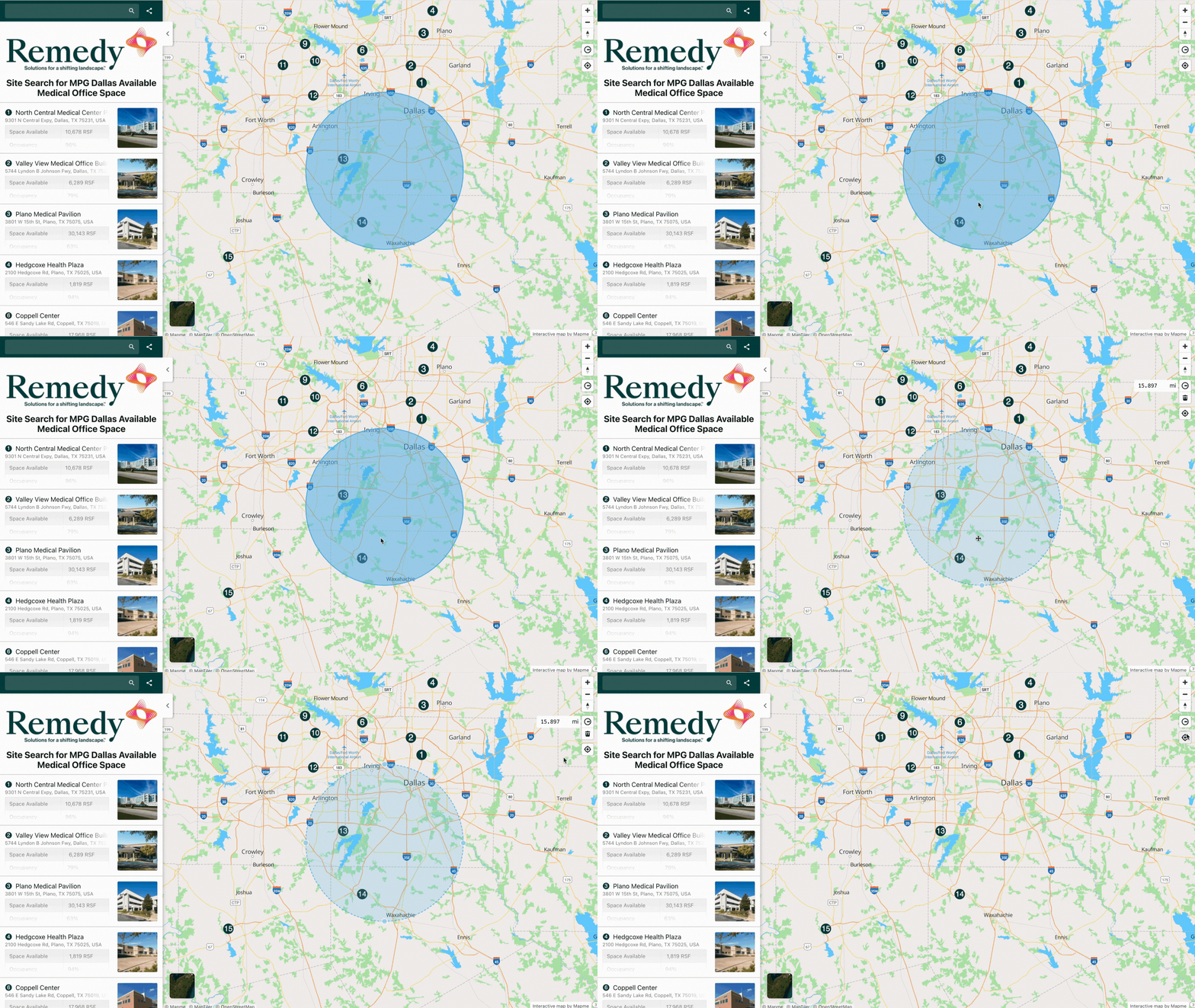
Units
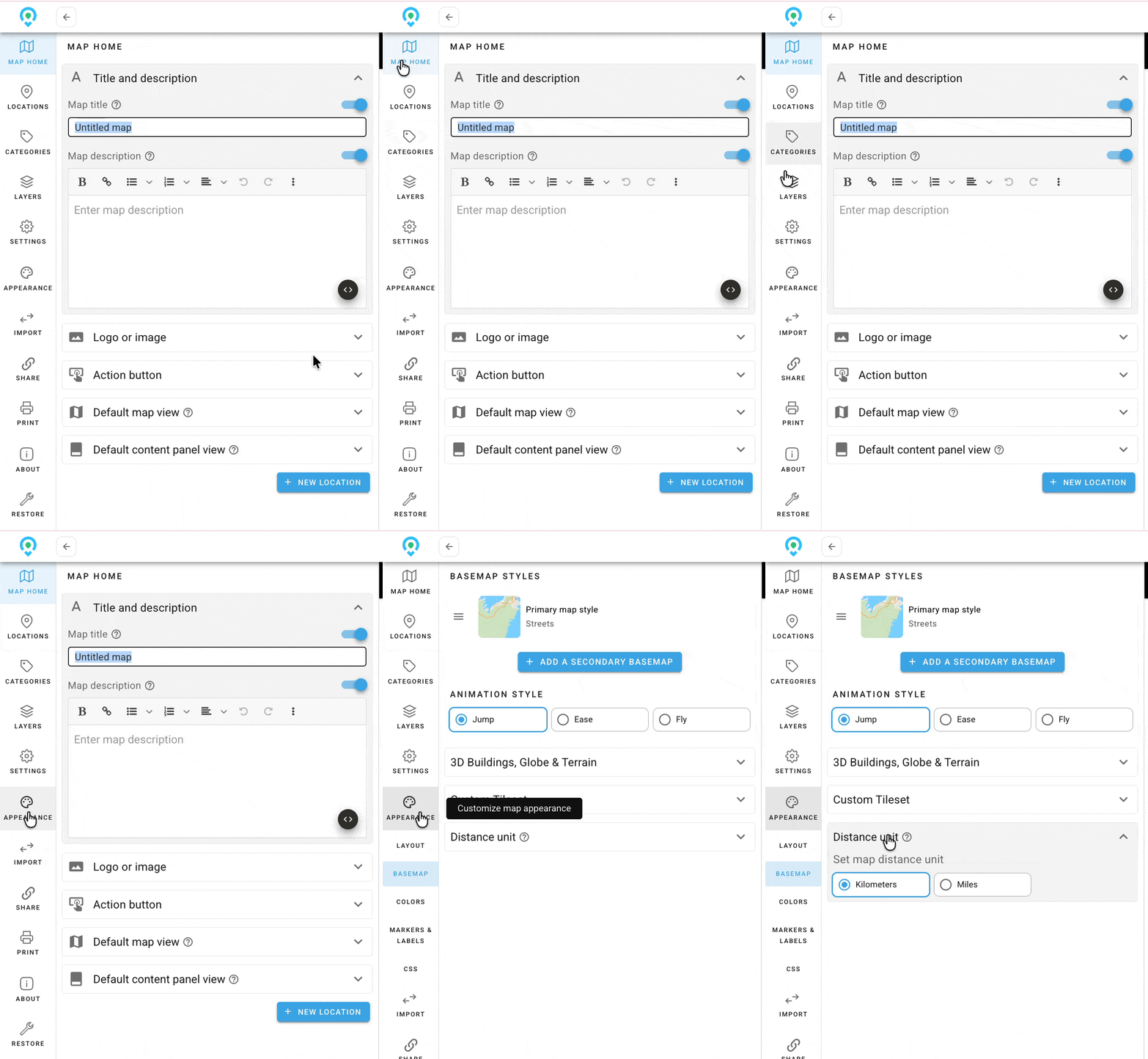
The distance units displayed in the radius tool follow your map’s unit settings.
To change the unit:
- Go to Appearance > Basemap > Distance Unit in the editor.
- Choose between metric (meters/kilometers) or imperial (miles/feet).
Use Case Scenarios
The radius tool offers flexible applications across different industries:
- Real Estate: Analyze nearby amenities, schools, or property listings within a given distance.
- Event Planning: Evaluate parking or service coverage areas around a venue.
- Retail and Business: Study customer reach or competition zones around store locations.
- Public Services: Visualize emergency response or delivery coverage areas.
- Tourism and Exploration: Check walking or biking distances around points of interest.
Because the tool works directly on the published map, your audience can perform their own analysis without modifying your map content.
Saving the Radius Circles
The radius tool is for temporary visual analysis.
Radius circles cannot be saved, exported, or shared after leaving the map view.
If you want to keep a record of your circles, take a screenshot of the map with the circles drawn.
Frequently Asked Questions
Can map users save or export the radius circles they create?
No. Radius circles created with the radius tool are temporary and cannot be saved, exported, or shared. Users can take a screenshot if they need to keep a visual record.
Why can’t I see the radius tool on my mobile device?
The radius tool is only available when the map is viewed in landscape mode. It does not appear on mobile portrait orientation, due to space and usability limitations.
How is the radius unit (miles vs. kilometers) determined?
The radius tool automatically uses the distance unit chosen by the map creator. Units can be configured in the editor under Settings > Basemap > Distance Unit.